
Copilot in Teams: the step-by-step guide (summarize, decisions, rewrite)
Tutorial published on October 12, 2026, updated on November 9, 2026. The screenshots were taken in Teams for the web, with a Microsoft 365 Copilot license, during a demo conversation (fictitious company, people, and figures): October 12 for steps 1 to 4, November 9 for steps 5 and 6, where our browser interface was displayed in English (Copilot's replies remained in French). The license price is from our comparison. Copilot Chat or Microsoft 365 Copilot, compiled from official Microsoft documentation.
Short answer: Copilot in Teams summarizes a conversation with a link to each source message, extracts decisions and deadlines in a table format, and rewrites a message before sending. The features of this guide require a Microsoft 365 Copilot license, which many call " Copilot Premium ", starting at €18.20 excluding VAT per user per month. In our test, the summary and the three deadlines identified were accurate; however, the predefined tones did little to change a short message, and only a personalized instruction resulted in a usable rewrite. The Teams Copilot application goes further: it transforms a conversation into an email for management and provides an update on a project based on your emails, conversations, and SharePoint documents, provided you verify that it hasn't missed any crucial documents.
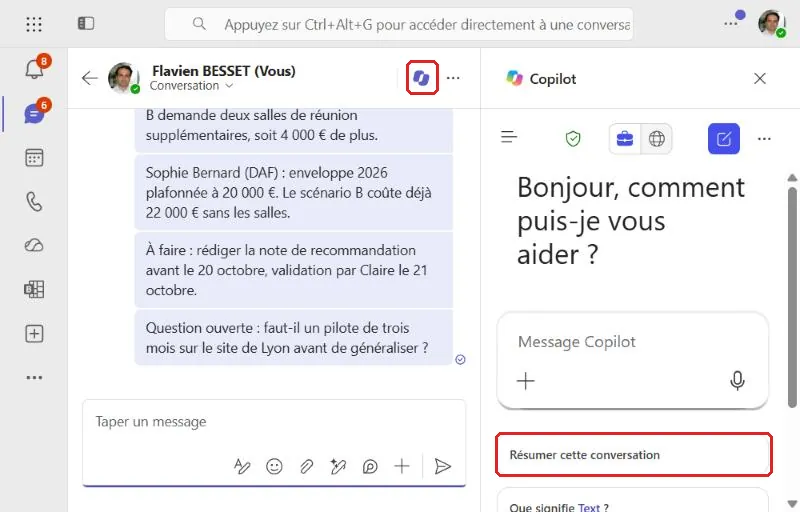
Two entry points are sufficient: the Copilot icon at the top of each conversation, which opens a panel on the right, and the "Write with Copilot" icon in the input area.
This guide follows the same case as our Copilot tutorial in Outlook The fictional company Atelier Horizon is preparing for its transition to hybrid work. Five messages summarize a project meeting: the decision expected at the executive committee meeting on October 24th, the cost of meeting rooms, the budget constraint, an action to be taken, and an open question. Each Copilot response was compared to the original messages. To implement these practices with an entire team, see our Copilot training in companies.
To delve deeper after a meeting, the free NextStart library offers a quick to turn a meeting into decisions and actions, to be pasted into Copilot after transcription. The others are gathered in our Examples of AI prompts by profession.
Copilot in Teams in brief: five tested uses
| Usage | Instructions or tested order | Results in our test | Point of vigilance |
|---|---|---|---|
| Summarize a conversation | Suggestion: "Summary this conversation" | A fair summary, with each point referring back to its source message, including the calculation of the budget overrun. | Check the important points using the source labels |
| Extract the decisions and deadlines | What decisions still need to be made, by whom, and by what date? Answer in table format. | Three open decisions, all with just the right deadlines. | The window is narrow: copy the table to work on it elsewhere. |
| Rewrite a message before sending | More formally, for Claire, Thomas and Sophie, specifying that the B exceeds the €2,000 envelope | Message sent to the three recipients, number and options included | The predefined tones change little; one awkwardness remained to be corrected. |
| Convert a conversation into an email | Write a summary email of this conversation for Marc Dubois, Managing Director… | A complete and accurate email in about twenty seconds, with its sources. | Copilot addressed the CEO informally: check the tone |
| To take stock of a project, considering all sources. | Get an update on the project using my emails, Teams conversations, and SharePoint documents… | A comprehensive summary, but the minutes of the Executive Committee meeting were omitted; a reminder mentioning them corrects everything. | Request a list of sources and name the authoritative documents. |
What you need to use Copilot in Teams
- A Microsoft 365 Copilot license assigned to your professional account. It gives access to the Copilot section of conversations and message rewriting.
- Teams for the web or desktop application. The screenshots in this guide were taken in Teams for the web, French interface.
- A conversation that contains substance. Copilot works on the messages of the open conversation: the more precise they are, the more precise the summary.
Step 1: Open Copilot in a conversation
At the top of the conversation, the Copilot icon opens a panel on the right. It offers ready-made questions, including "Summary this conversation," and a free text input area.
Step 2: Summarize the conversation
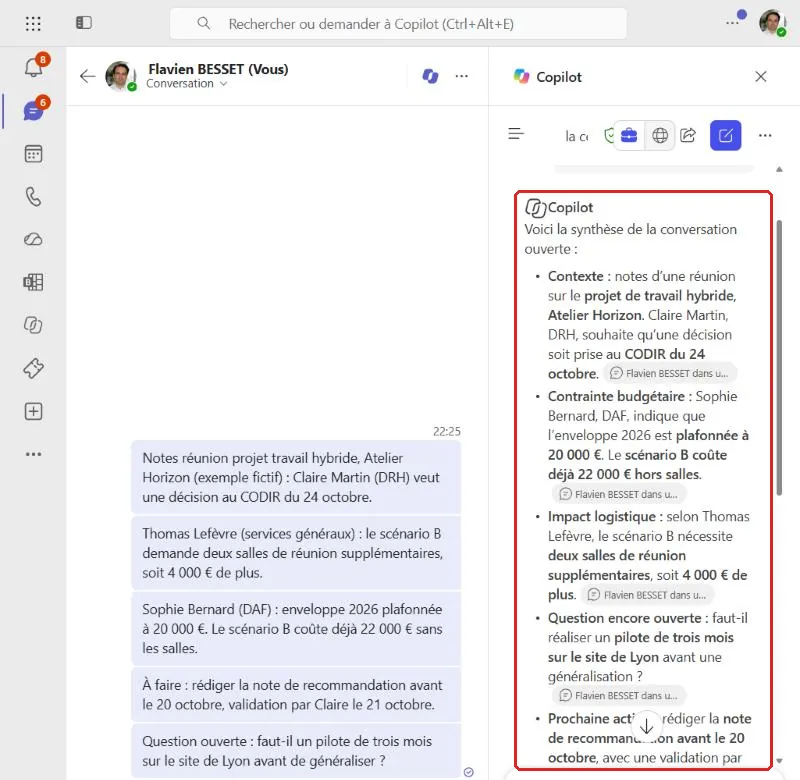
A single click on the suggestion is all it takes. Copilot responds with a bulleted list: the context, the budget constraint, the logistical impact, the open question, and the next action. Each point is followed by a small label that links back to the message from which the information originates, allowing for verification with a single click.
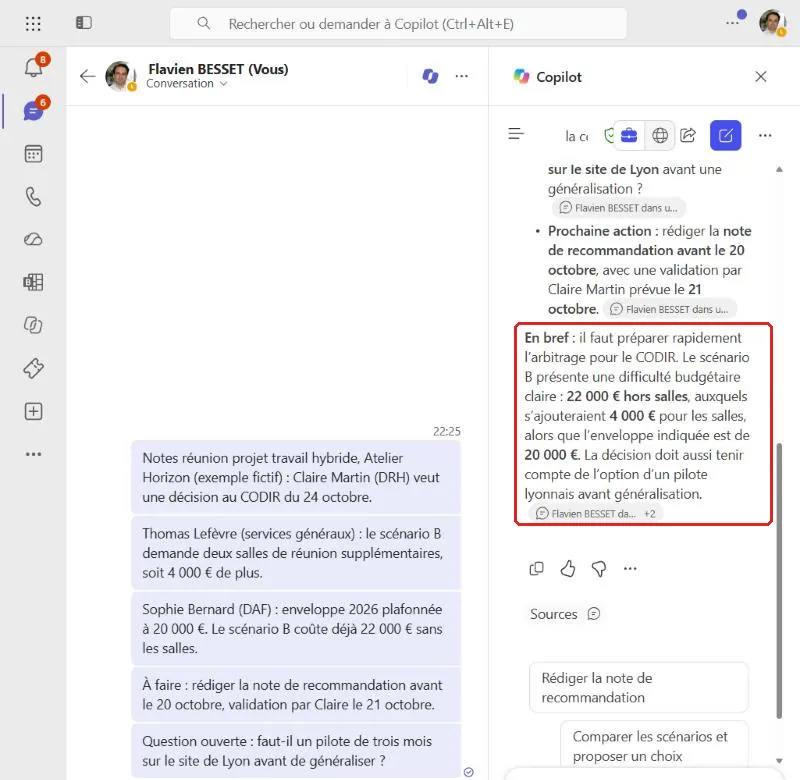
The summary concludes with a "In Brief" paragraph that does what the previous messages failed to do: it adds together the €22,000 for Scenario B and the €4,000 for the venues, and reiterates that the total budget is €20,000. The calculation is correct, and this is precisely the point the steering committee will have to decide.
The "Summary" suggestion is just a starting point: you'll get a more useful summary by specifying what you want to do with it. Here are four examples of summary requests to type in the Copilot panel of a conversation:
- Upon returning from vacation: "Summarize what has been said since Monday and indicate what directly concerns me."
- Before a meeting: "Summary each person's position on the budget, one line per person."
- For the hierarchy: "Please provide a three-sentence summary of the project's status to my management."
- To decide: "Summarize the options discussed in a table: option, cost, who supports it."
Citation tags remain the reflex for verification: a summary point without a tag is a point to check in the conversation.
Step 3: Ask a follow-up question
The panel keeps the thread of the exchange: you can follow up with a more precise question and impose the form of the answer.
What decisions still need to be made, by whom, and by what date? Answer in table format.
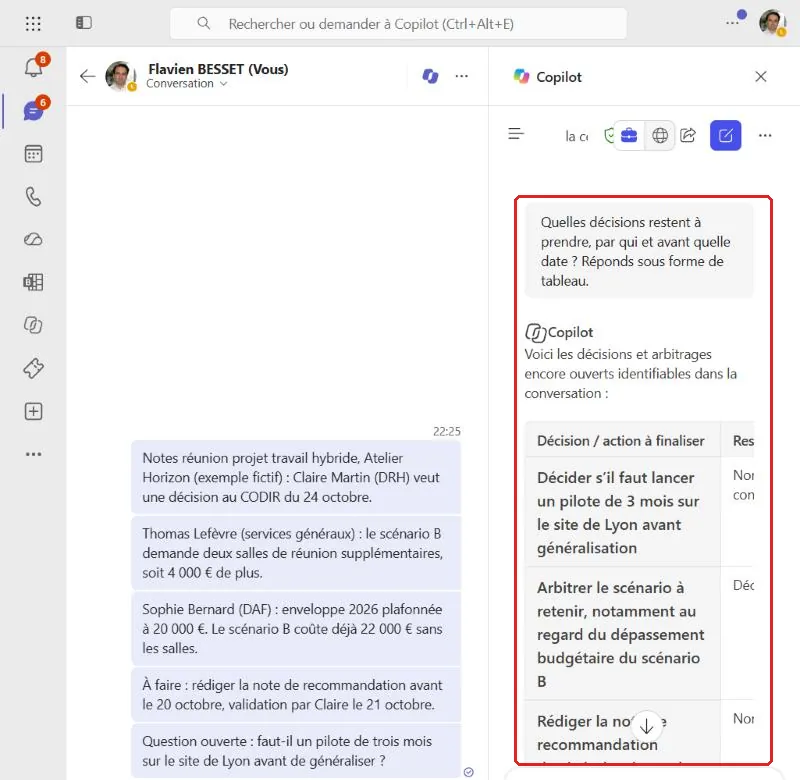
Copilot identifies the three outstanding items (the three-month pilot program in Lyon, the decision regarding scenario B, and the recommendation note) and their deadlines, all perfectly timed: before the Executive Committee meeting on October 24th, on October 24th, and before October 20th. The only drawback is the display: the panel is narrow, requiring horizontal scrolling to navigate the table. To reuse this table elsewhere, copy the answer using the icon provided below each answer.
Step 4: Rewrite a message before sending it
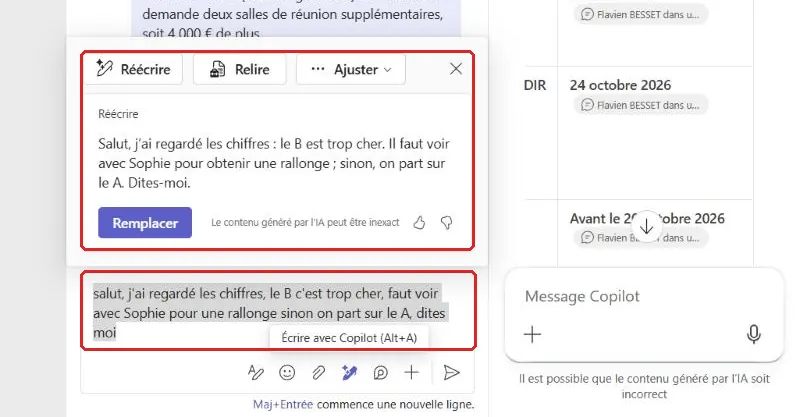
In the input area, the "Write with Copilot" icon (Alt+A) modifies the message you are typing before sending. Here, we're starting with a quickly written draft:
Hi, I've looked at the figures, option B is too expensive, we'll have to talk to Sophie about an extension, otherwise we'll go with option A, let me know
The "Rewrite" button corrects punctuation and capitalization, but nothing more. The suggested text is only inserted if you click "Replace".
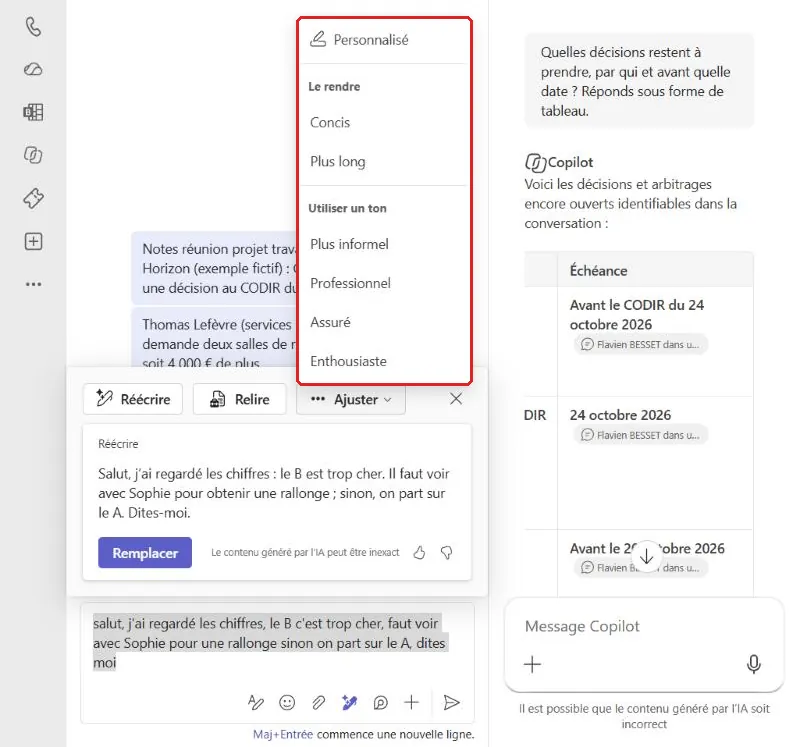
The "Adjust" menu offers more levers: make the message concise or longer, choose a tone (more informal, professional, confident, enthusiastic) or give a personalized instruction.
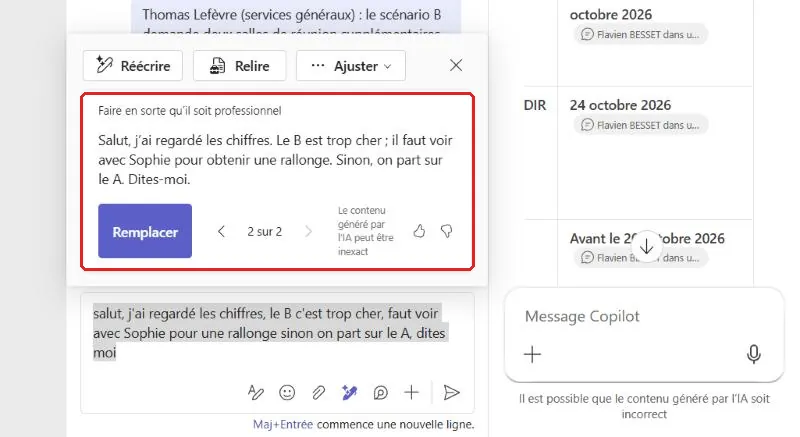
The "Professional" tone, however, left the message almost unchanged, including "Hello" and "the B". In a short text, the predefined buttons make little difference.
Personalized instructions work much better:
More formally, for Claire, Thomas and Sophie, specifying that the B exceeds the €2,000 envelope.
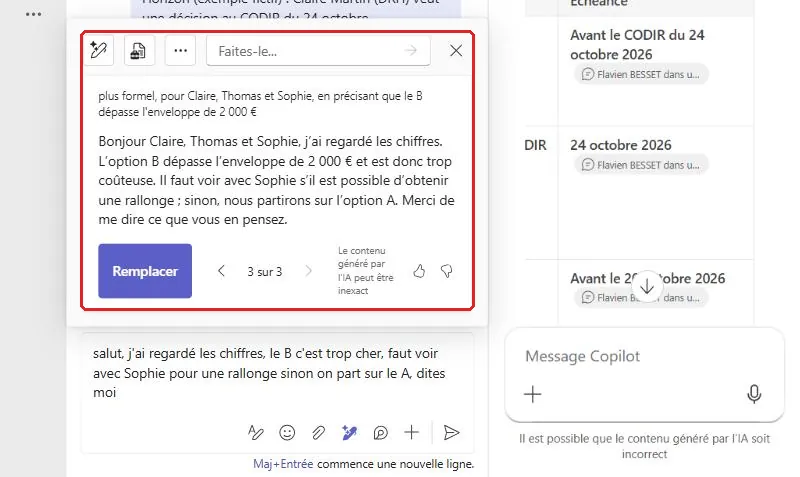
The message is now addressed to all three recipients, mentions the €2,000 overage, and clearly offers both options. There's one awkward phrase that needs to be corrected manually: "You'll have to see with Sophie," even though Sophie is one of the recipients. Copilot rephrases it; he doesn't reread the message from the recipient's perspective.
Step 5: Turn a conversation into an email for management
A decision is often prepared in Teams, but it's then sent via email. In the Copilot pane of the conversation, open a new discussion (icon in the top right corner of the pane) and ask:
Write a summary email of this conversation for Marc Dubois, CEO: expected decision, figures, deadlines and open question. Maximum 8 lines.
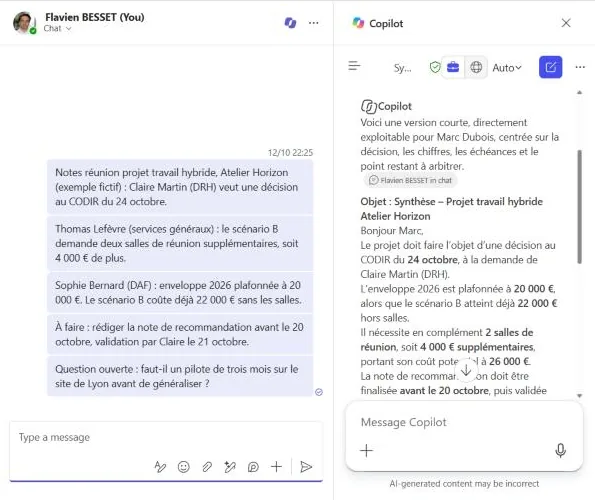
In about twenty seconds, Copilot delivers a ready-to-copy email with a subject line: the expected decision at the Executive Committee meeting on October 24th, the €20,000 envelope, Scenario B at €22,000 excluding venues and €26.000 including them, the report due before October 20th, and the question from the Lyon pilot. All the figures and dates are correct, and each element links back to the original message. One detail needs correcting, however: the email ends with "Yours truly," a form of address that few managers use with their CEO. Specify the appropriate register in the instructions ("formal address," "formal tone") when the recipient is an executive.
Step 6: Take stock of a project, considering all sources.
The most dramatic time-saving feature is the Teams Copilot app, which appears at the top of the conversation list. With a Microsoft 365 Copilot license, it searches your emails, conversations, meetings, and SharePoint or OneDrive files (the "Work IQ" mode displayed at the top). It's the perfect tool for project managers taking over a project or for managers who need to hold a brief meeting in five minutes.
Take stock of the Atelier Horizon hybrid work project using my emails, Teams conversations and SharePoint documents: where are we, what remains to be done, by whom and by when? Indicate the source of each point.
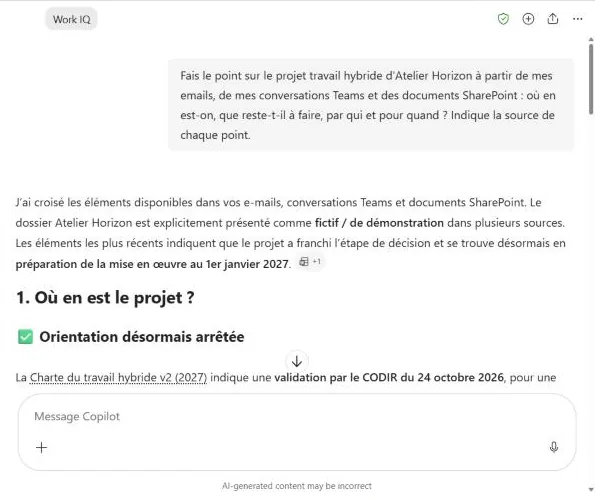
In about thirty seconds, Copilot cross-referenced the Teams conversation, the hybrid work charter, the survey summary, a scoping document, and a presentation to the management committee, all found in SharePoint. Its summary is comprehensive and well-sourced: the chosen approach, two days of remote work, Tuesdays and Thursdays on-site, implementation on January 1, 2027, and employee concerns.
But it contains a fundamental error. Copilot states that it found no confirmation of the budget allocation for the meeting rooms or the decision regarding the Lyon pilot project, and presents them as open issues. However, the minutes of the Executive Committee meeting, stored in the same SharePoint folder, definitively resolve both: meeting rooms postponed to 2027, an additional €2,000 allocated, and the pilot project approved. Copilot simply couldn't find them. Its "what remains to be done" table therefore consists of generic actions, instead of the six dated actions decided upon by the Executive Committee.
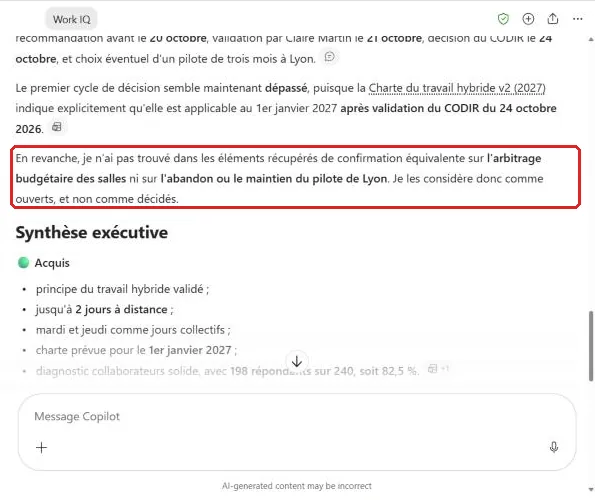
The correction consists of a prompt that names the document:
Read the document "Minutes of the Executive Committee Meeting of October 24, 2026" in SharePoint: what does this change for your point, particularly regarding the budget, the rooms, and the Lyon pilot project? Then list the actions with their responsible party and their deadline.
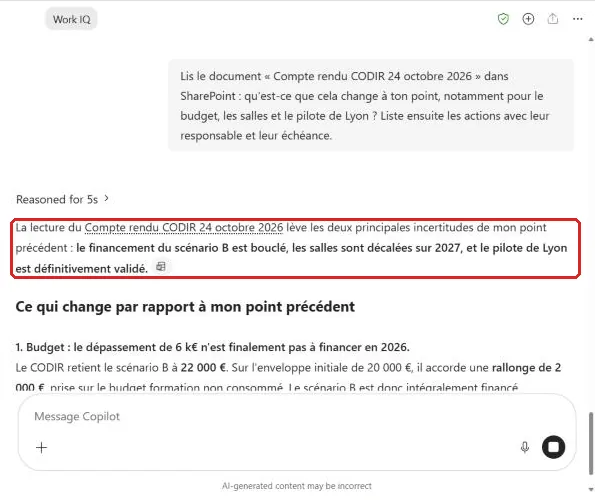
This time, Copilot acknowledges that the report "addresses the two main uncertainties" of its first point, then lists the six actions decided upon, all of which are accurate: finalize the charter (November 7), present it to the Works Council (November 13), announce the new organization (November 17), order screens and headsets (November 20), draft the FAQ for managers (November 24), and monitor the pilot indicators (December 1). It adds the following milestones: budget review at the end of January, extension to the production workshop at the January Executive Committee meeting, and pilot evaluation in March.
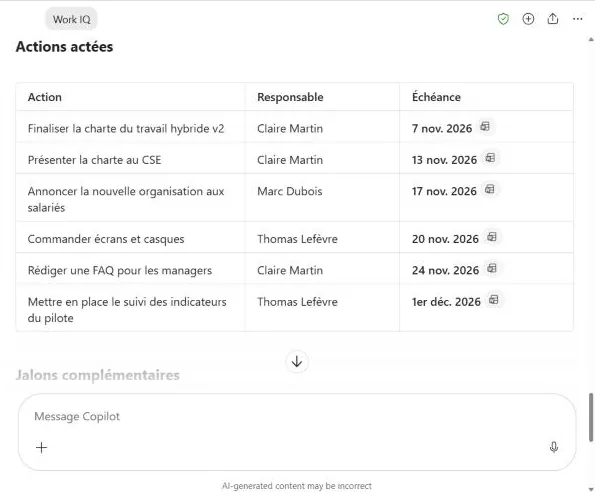
This lesson applies to all progress points: Copilot looks for relevant documents, but doesn't read them all. Always ask for a list of the sources used, and identify the authoritative documents yourself, such as a decision report.
The most time-saving uses of Copilot in Teams
Ranking established from our tests and training in large organizations, where a large part of the communication now takes place via Teams.
| Situation | Using Copilot | Or | What we avoid |
|---|---|---|---|
| A hundred-message conversation upon returning from vacation | To summarize what has happened to me since Monday | Copilot section of the conversation | Scroll through all |
| A meeting via messages that didn't lead anywhere | Open decisions, responsible parties and dates in table | Copilot section of the conversation | Another meeting to clarify |
| A message to send to multiple services | Rewrite with a personalized instruction | Write with Copilot (Alt+A) | Misunderstandings arising from a hastily written message |
| A decision that needs to be reported to management | Convert the conversation to email | Copilot section of the conversation | Write the summary by hand |
| A project scattered between emails, chats and documents | Progress report from all sources | Teams Copilot app | Reopen each tool one by one |
| A recorded Teams meeting | Summary, decisions and actions of the meeting | Meeting Summary Tab | Write the report |
The last use case, the meeting minutes, requires that transcription be enabled: this is the subject of our Copilot Teams and Outlook kit, which details the settings and rules to be established with the CSE.
10 Copilot prompts for Teams to copy
In the Copilot pane of a conversation or channel, always specify the expected format: list, table, number of points.
- Summarize this conversation in 5 points.
- What decisions have been made, and which ones remain open?
- List the actions to be taken with their responsible party and their deadline, in table format.
- What disagreements emerge in this conversation?
- What has been said about the budget?
- Prepare a summary message to post in the channel for those who are absent.
- What questions remain unanswered?
- Draft the agenda for the next meeting based on this conversation.
- Rewrite my message so that it can be understood by someone who hasn't followed the exchange.
- Make my message more concise by keeping the dates and amounts.
Limitations and pitfalls to be aware of
- Check with the source labels. Each point in the summary refers back to the original message: in our test, everything was correct, but it is this link that allows us to see it in a few seconds.
- Predefined tones do little to change a short message. A personalized instruction, which specifies who you are writing to and what should appear, gives a much better result.
- Read before replacing. Copilot can leave inconsistencies, such as referring to a person in the third person when they are among the recipients.
- A progress report can overlook the crucial document. In our test, Copilot listed two issues as open, but these were resolved by a report that it could not locate. Request a list of sources and name the authoritative documents.
- The shutter is narrow. The tables are difficult to read; copy the answer to work on it elsewhere.
- Meetings are another matter. This guide focuses on written conversations. In meetings, Copilot relies on transcription, which must be enabled.
Frequently asked questions about Copilot in Teams
Do I need a license to use Copilot in Teams?
Yes. The Copilot conversation view and message rewriting features described in this guide require a Microsoft 365 Copilot license assigned to your work account, which many refer to as "Copilot Premium," starting at €18.20 (excluding VAT) per user per month. Your IT department can confirm the offer assigned to your account.
Can Copilot summarize a Teams conversation?
Yes. The Copilot icon at the top of the conversation opens a panel with the suggestion "Summary this conversation." Each point in the summary links back to the message from which the information originated.
Does Copilot send messages on my behalf in Teams?
No. The rewrite feature suggests text above your draft; it is only inserted if you click Replace, and sending remains your decision.
Do the other participants see my questions on Copilot?
No. According to Microsoft, the Copilot section of a conversation is personal: your questions and its answers do not appear in the shared conversation.
Can Copilot in Teams search my emails and SharePoint documents?
Yes, with a Microsoft 365 Copilot license: the Teams Copilot app queries your emails, conversations, meetings, and files while respecting your access rights. In our test, it cross-referenced a Teams conversation and four SharePoint documents, but missed a crucial detail: request a list of sources and specify which documents are authoritative.
Explore more!
- Copilot Studio: Create your first agent step by step
- Copilot in Outlook: the step-by-step guide
- Copilot in SharePoint: the step-by-step guide
- Copilot in Word: the step-by-step guide
- Copilot in Excel: the step-by-step guide
- Copilot in PowerPoint: the step-by-step guide
- Copilot Chat or Microsoft 365 Copilot: what are the differences?