
Copilot in Outlook: the step-by-step guide (summarize, reply, coaching)
Tutorial published on October 12, 2026. All captures were made that day in Outlook for the web, with a Microsoft 365 Copilot license, on a demo email thread (fictitious company, people and numbers).
Copilot in Outlook allows you to summarize a long email thread in seconds, to write a response based on a simple instruction, and then improve it with coaching on tone and clarity. Everything happens in the reading window and in the writing window: simply click on the "Summary by Copilot" banner or use the Alt+i shortcut in a reply.
This guide follows a concrete example: three emails exchanged within a fictitious company, Atelier Horizon, which must choose between three hybrid work scenarios before its management committee meeting. The HR department raises the issue, the facilities department estimates the cost of meeting rooms, and the finance department reiterates the budget. Each result obtained with Copilot was reviewed, and its figures were compared to the original emails. To implement these practices with an entire team, using their own email system, see our Copilot training in companies.
What you need to use Copilot in Outlook
- A Microsoft 365 Copilot license assigned to your professional account. This is what gives access to the email summaries, writing, and coaching described here.
- Outlook for the web or the new Outlook For Windows and Mac. The screenshots in this guide were taken in Outlook for the web.
- A mailbox hosted in Microsoft 365 Copilot works on the messages in your professional account, respecting your access rights.
Step 1: Summarize an email thread
When an email is part of a conversation, Outlook displays a "Summary by Copilot" banner above the message. Simply click on it: nothing is changed, Copilot simply reads the thread.
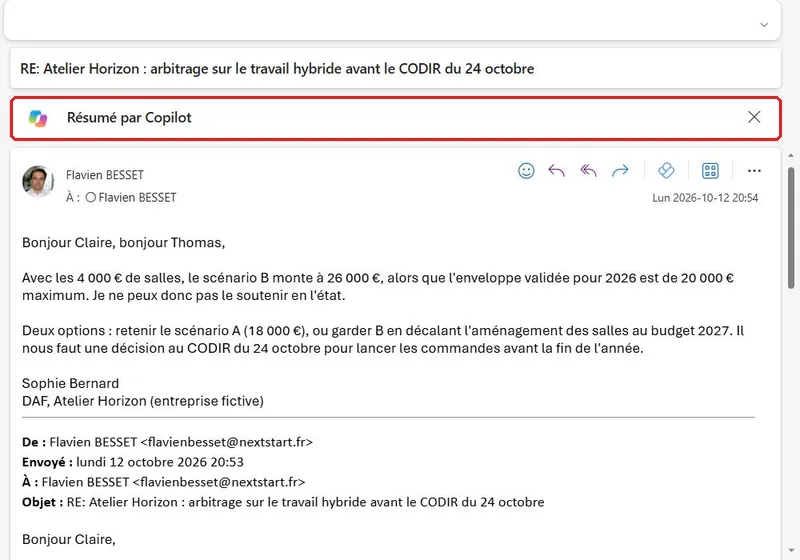
About ten seconds later, the summary appears in five paragraphs: the survey results (198 responses out of 240 employees, 71% in favor of two days of remote work), the three scenarios with their costs, Thomas Lefèvre's position, Sophie Bernard's position, and Claire Martin's request to obtain feedback before October 17. The figures are accurate, and Copilot correctly attributed each position to its author based on the signatures.
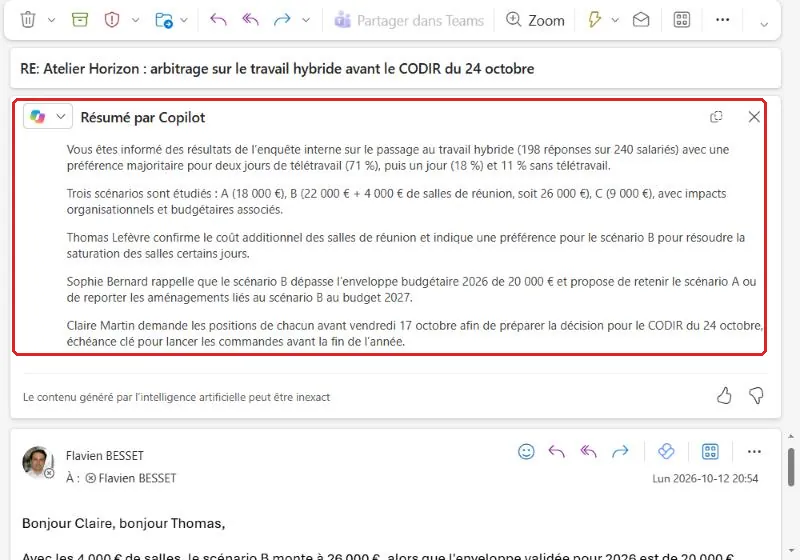
Important note: the summary is organized by theme, not chronologically. It lists scenario B as "€22,000 + €4,000 for meeting rooms, totaling €26,000" in the scenario list, whereas the €4,000 for meeting rooms only appears in Thomas's reply. While there's no real error, it makes it unclear who said what, or when. To make a decision, reread the original messages regarding the figures.
Step 2: Have them write an answer following the instructions
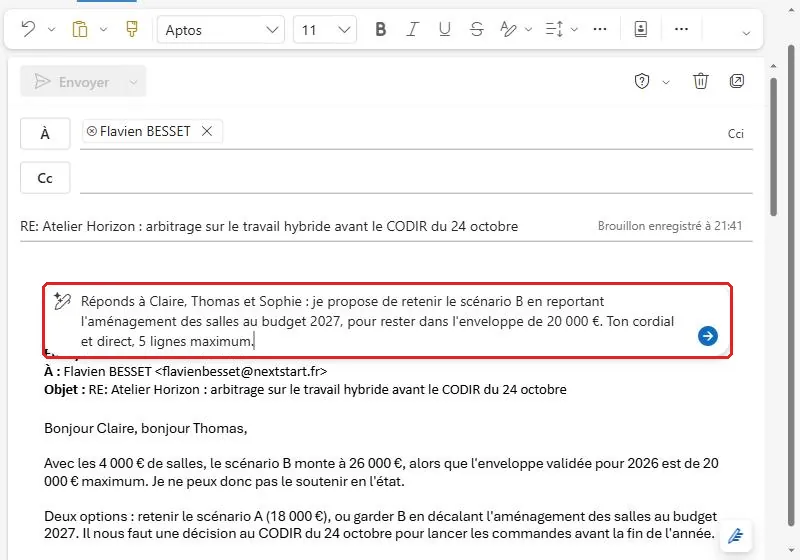
In the reply window, the line "Write with Copilot (Alt+i)" opens an input area. Here you describe what you want to say, to whom, in what tone, and in how many lines:
Reply to Claire, Thomas, and Sophie: I propose we adopt scenario B, postponing the room renovations to the 2027 budget, to stay within the €20,000 envelope. Keep your tone friendly and direct, 5 lines maximum.
Copilot produces a complete draft, including a greeting to the three recipients, the proposal, its rationale, and a signature. The text is highlighted until it is approved, and a menu offers the option to keep, discard, or revise it.
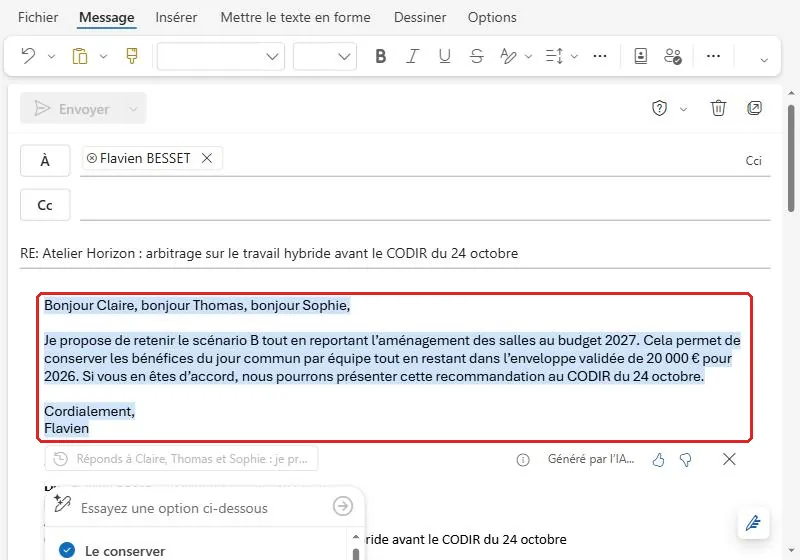
The trap lies in our own instructions. Scenario B costs €22,000 even without the venues: it therefore exceeds the €20,000 budget. Copilot repeated the statement verbatim ("while remaining within the approved budget of €20,000") without comparing it to the figures in the thread, which he had just correctly summarized. He writes what he is asked to write; verification remains your responsibility.
Step 3: Correct and compare versions
There's no need to rewrite everything by hand. The "Try an option below" field accepts a new instruction that applies to the draft:
Correction: Even without the venues, scenario B costs €22,000 and exceeds the budget by €2,000. Propose requesting this additional funding from the Executive Committee.
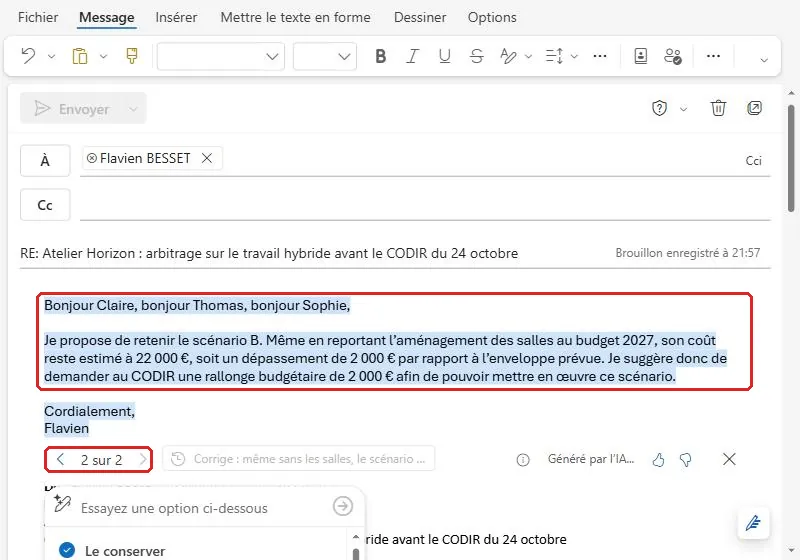
The second version is correct: €22,000, €2,000 overrun, request for additional funding from the Executive Committee. The "2 out of 2" arrows allow you to compare the versions before choosing. The same menu also offers options to shorten, lengthen, change the pitch, or display the sources used.
Step 4: Request coaching before sending
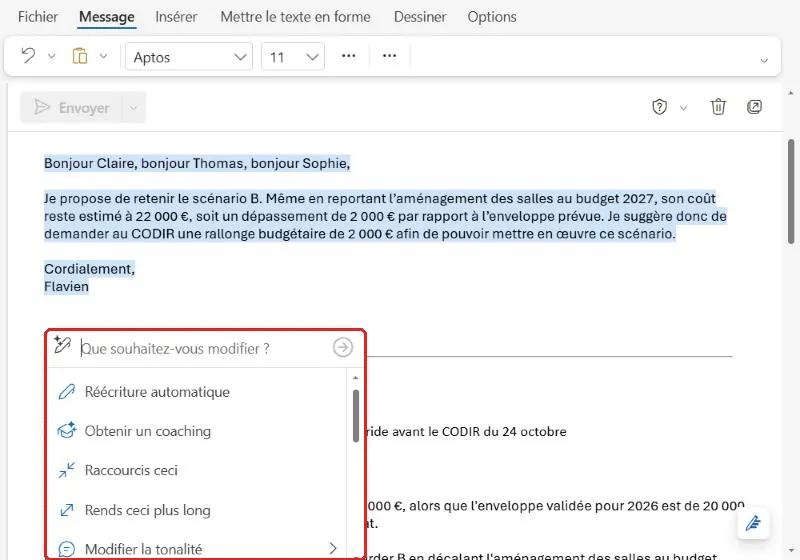
Once the text is saved, the Copilot icon to the left of the message opens a second menu: automatic rewriting, coaching, shorten, lengthen, change tone. Coaching doesn't rewrite anything: it provides feedback.
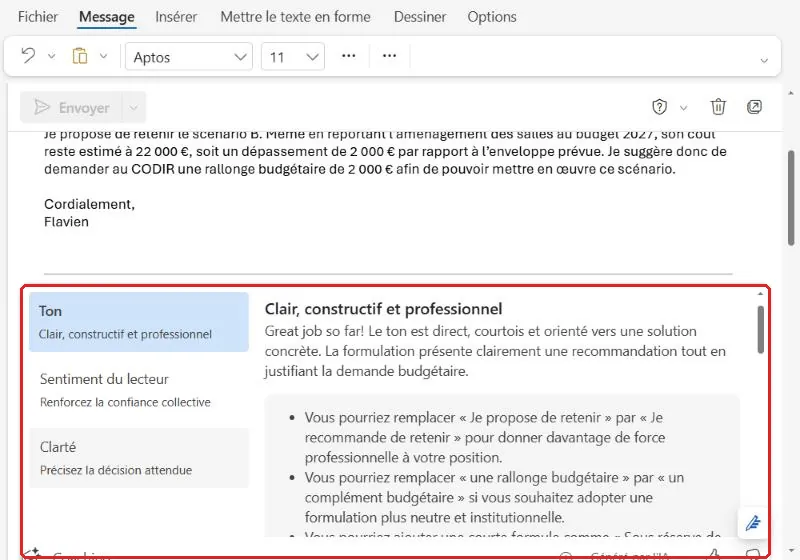
Copilot evaluates the message from three perspectives: tone, reader sentiment, and clarity, and suggests alternative wording: "I recommend retaining" rather than "I propose retaining," "budgetary supplement" rather than "budgetary extension." The suggestions are relevant. One curious detail, however: the overall assessment was displayed in English ("Great job so far!") while everything else was in French.
10 Copilot prompts for Outlook to copy
The more precise the instructions are regarding the recipient, the objective, and the expected length, the fewer revisions are needed.
- Summarize this thread in 3 points and state what is expected of me.
- List the decisions taken and the questions that remained open in this exchange.
- Reply to accept the proposal and request a time slot next week, in 4 lines.
- Respond to decline politely, offering an alternative.
- Write a polite follow-up to get a response before Friday.
- Rephrase my answer in a more diplomatic tone, without changing the figures.
- Shorten this message by half while keeping the dates and amounts.
- Transform this draft into a bulleted list that is readable on mobile.
- Write an email announcing the October 24th meeting from this thread, including the agenda.
- Please check that my answer addresses all the questions asked in the original message.
Limitations and pitfalls to be aware of
- Copilot writes what you ask it to. In our test, he repeated a false budgetary statement included in the instructions. Review the figures in each draft before sending.
- The summary is grouped by theme. It merges information from different messages: useful for understanding quickly, less so for knowing who put forward which figure.
- Nothing leaves without you. The draft remains highlighted until you save it, and sending it remains a manual action.
- One instruction at a time. Writing, then editing, then adjusting the tone results in versions that are easy to compare with the navigation arrows.
- Consider confidentiality. Copilot operates within your Microsoft 365 environment and respects your access rights, but it reads the entire thread. Avoid having it summarize conversations that you will then forward without reviewing them.
Frequently Asked Questions about Copilot in Outlook
Do I need a license to use Copilot in Outlook?
Yes. The email summarization, Copilot writing, and coaching described in this guide require a Microsoft 365 Copilot license assigned to your work account. Your IT department can confirm the offer assigned to your account.
Can Copilot send an email on my behalf?
No, not in the functions described here. Copilot creates a draft that you can keep, modify, or abandon; sending it remains a click on your part.
Does Copilot summarize the entire thread or just the last email?
The Copilot Summary banner covers the entire exchange. In our test, it reproduced all three messages in the thread and assigned each position to the correct person.
Does Copilot in Outlook work in French?
Yes. Instructions can be written in French, and summaries and drafts are written in French. In our test, only the overall coaching assessment was displayed in English.