
Copilot Studio: Create your first agent step by step (2026)
This guide was published on October 24, 2026, and is based on official Microsoft documentation (Microsoft Learn for Copilot Studio and Agent Builder, pricing page microsoft.com/fr-fr) consulted that day, and screenshots taken the same day in Copilot Studio on a tenant with a Microsoft 365 Copilot license. Copilot Studio is updated monthly, and the French interface labels vary from screen to screen: rely on the logical flow of the steps rather than the exact wording.
Copilot Studio is Microsoft's tool for creating agents: specialized assistants that follow your instructions, rely on your documents, and can act within your tools. There are two entry points. Agent Builder, integrated into the Microsoft Copilot application, allows you to create an agent for yourself or a small team in just a few minutes. Copilot Studio, at copilotstudio.microsoft.com, goes further: actions in other applications, publishing to the entire organization, and governance. This guide walks you through creating your first agent in Copilot Studio, step by step, and then demonstrates the express version in Agent Builder. For the method applicable to any tool (ChatGPT, Claude, Gemini, Mistral), see our guide for create an AI agent in enterprise without coding.
For a first realistic case, the free NextStart library details a Level 1 service desk assistant, with its instructions and escalation procedure.
Copilot Studio in five lines
- Where: on copilotstudio.microsoft.com, using your work account. Guest accounts of the tenant do not have access.
- With which license: The Microsoft 365 Copilot license includes the creation of agents in the standard Copilot Studio harness; without it, usage is paid for in Copilot Credits.
- What is being built there: an agent with a name, instructions, a model, knowledge (SharePoint, files, websites) and, if needed, tools that act.
- Where it is published: in Teams and Microsoft 365 Copilot for internal use, on a website or other channels with a standalone Copilot Studio plan.
- Who approves: the administrator, for distribution to the entire organization and for the security rules of the connectors.
Agent Builder or Copilot Studio: where to start?
Microsoft presents the two tools as complementary. On its pricing page, Agent Builder is also called "Copilot Studio Lite." The table below summarizes the official comparison.
| Agent Builder | Copilot Studio | |
|---|---|---|
| where to find it | Microsoft Copilot application, available on the web and in Teams (not on mobile). | copilotstudio.microsoft.com |
| For who | Any employee | Agent creators, subject matter experts, technical teams |
| Agent's hearing | Oneself or a small team | One service, the entire organization, external clients |
| Agent type | Questions and answers about knowledge | Multi-step process, actions in other tools, integrations |
| Administration | Microsoft 365 admin center | Power Platform admin center, thinner |
| Actions towards other services | No | Yes: connectors, Power Automate flows, MCP servers |
Our advice: if your agent only needs to respond based on documents, start with Agent Builder. As soon as they need to take action (create a ticket, send a request, update a list) or manage an entire service, switch to Copilot Studio. There's even a button that lets you copy an agent from Agent Builder to Copilot Studio without starting from scratch.
Before you begin: access, licenses and administrator
Who can log in?
You can open Copilot Studio if you have one of the following rights: a Microsoft 365 Copilot license, a Copilot Studio user license assigned by the administrator, a free trial, or membership in the creator group that the administrator has configured for pay-as-you-go pricing. Users of the agent after it is published do not need a Copilot Studio license.
The two harnesses: a choice to be made from the outset
Since June 2026, Copilot Studio has offered two build engines, which Microsoft calls "harnesses." The choice is made during agent creation and is final for a given agent. Note: In the new Copilot Studio interface, deployed in the fall of 2026, the button Agent The homepage creates by default an agent of the GitHub Copilot harness, indicated by the mention "Uses Copilot Credits".
| Standard harness | GitHub Copilot Harness ("New Experience") | |
|---|---|---|
| Why | Short, structured tasks, business rules, high traffic | Long and complex processes, file manipulation |
| Sections and triggers | Yes | No, they were replaced by "hooks". |
| Cost with Microsoft 365 Copilot license | Internal use included; billing after publication only for anything not covered. | Not included: credits are consumed during the design, testing and evaluation phases. |
For a first agent, Microsoft recommends the standard harness. This guide follows that one.
What the administrator needs to have settled
- A Power Platform environment where to create your agents, ideally a test environment separate from production.
- Data protection rules (DLP) which allow or block each connector.
- The credits distributed by environment, with a monthly cap per agent if needed.
- Authorized models. Claude templates from Anthropic are disabled by default in the European Union: the administrator must enable them in Power Platform and in the Microsoft 365 admin center, knowing that they are processed outside the European data border.
Without a license, the free trial allows you to create and test an agent, but not to publish it. It can be extended once for 30 days, and the agent continues to function for up to 90 days after expiration.
Choosing a good first agent
The first agent must succeed, not impress. Consider a case that ticks four boxes: a frequently asked question, existing reference documents, a clearly defined audience, and an easily verifiable answer. Three examples that work well in business:
- The HR assistant which answers questions about leave, teleworking and expense reports based on agreements and procedures published on SharePoint.
- The receptionist newcomers, who explain the organization, tools and useful contacts.
- The procedures assistant from a department (purchasing, quality, IT), which finds the correct procedure and summarizes the steps.
We're using the HR assistant as an example here. For other ideas categorized by function, see our page AI agents and assistants by profession.
Create your first agent in eight steps
Step 1: Open Copilot Studio in standard harness
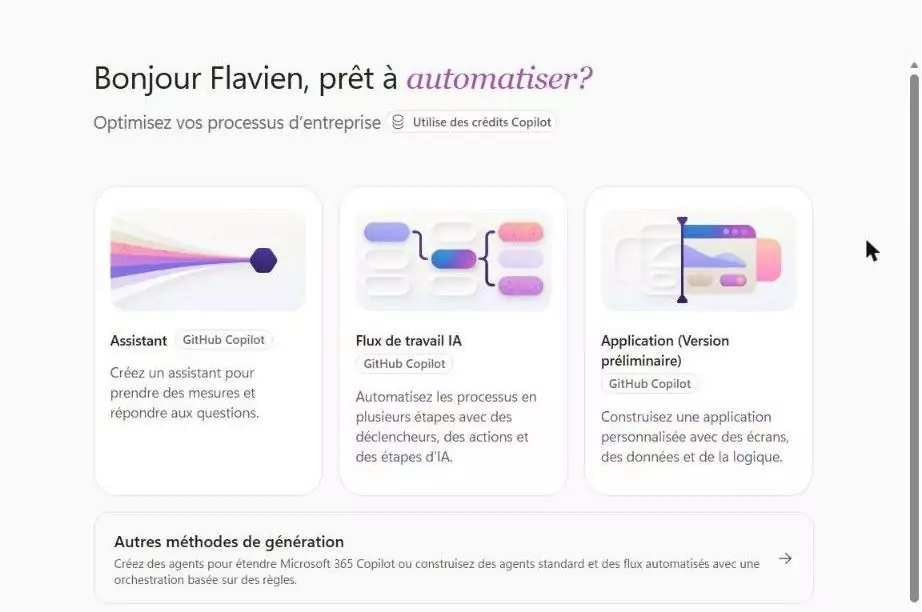
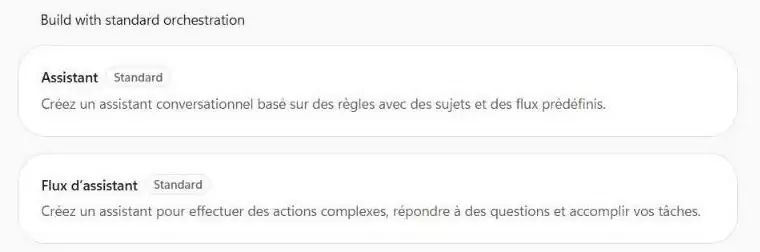
Log in to copilotstudio.microsoft.com with your work account and verify in the bottom left corner that you are in the correct environment. Depending on your tenant, two interfaces coexist. In the new interface, the home screen offers three tiles: Wizard, AI Workflow, and Application, all labeled "GitHub Copilot" and "Uses Copilot credits." Do not click on Wizard; scroll down to... Other generation methodsThen, in the "Build with standard orchestration" section, choose Assistant with the label StandardThis is the harness included in the Microsoft 365 Copilot license. If your tenant is still displaying the old interface, with a toggle switch New experience, disable it. In the agent list, the "Powered by" column indicates each agent's harness: "Standard" or "GitHub Copilot".
Step 2: Name and describe the agent
The window Name your assistant only requires a name (maximum 42 characters); the "Agent settings (optional)" panel allows you to set the language.
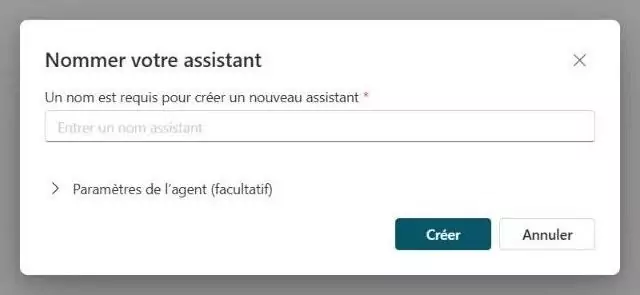
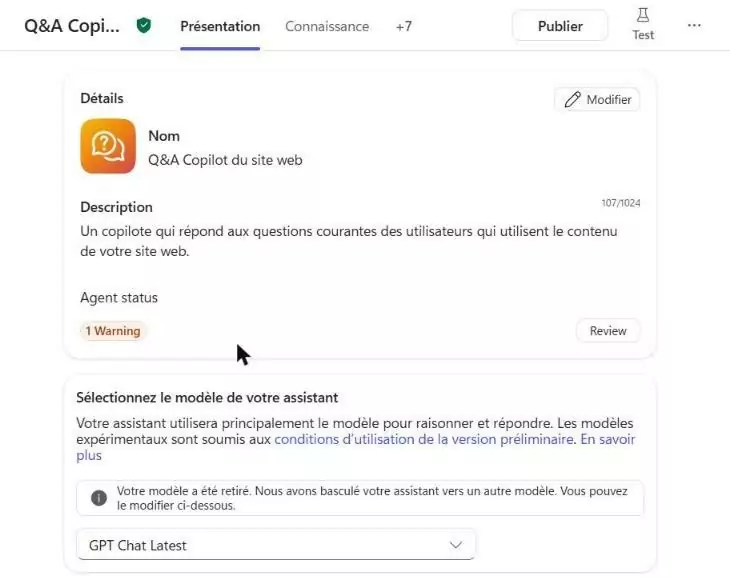
Click on Create : you arrive at the page Museum Overview of the agent. In the map Details, click on Edit and write the description, in 1,024 characters maximum: this is what tells Copilot when to suggest your agent. For example:
Create an HR assistant for our company's employees. This assistant will answer questions about leave, remote work, expense reports, and health insurance, using only documents from the HR SharePoint site. They will always cite the document and page from which their answer originates. If they cannot find the information, they will state this and direct the user to HR@company.fr. Use a simple and friendly tone and keep your answers concise.
If your tenant displays the old interface, the home screen will instead offer a field to describe the agent in everyday language: Copilot Studio will then generate its name, description, and instructions, and suggest related information. These suggestions are not saved between sessions: confirm what you want before leaving the screen.
Step 3: Write the instructions
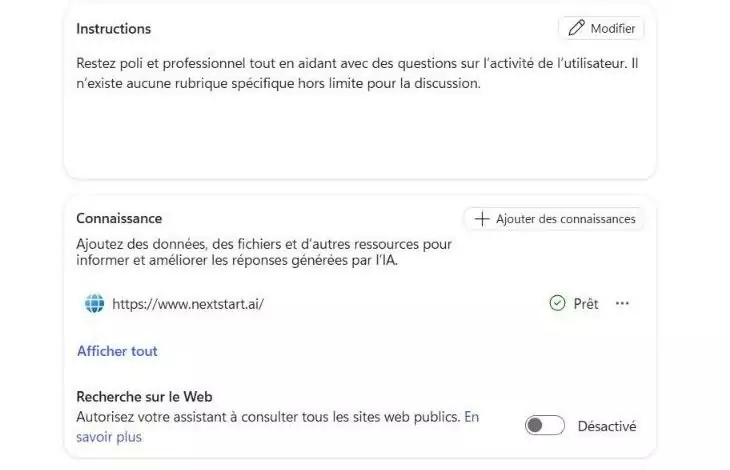
Still on the page Museum Overview, the map Instructions Accepts up to 8,000 characters. This is the heart of the agent: click on Edit and structure them into three parts, as recommended by Microsoft.
Goal. You help employees find reliable answers to their common HR questions.
Instructions. Answer only based on the HR documents provided. Quote the document title. If the answer depends on the contract or personal situation, state this and refer the question to the HR team. Never offer legal advice.
Format. Three to six lines, then the source. Use formal address. RTT means reduction of working time; CET means time savings account.
Step 4: Choose the model
In the map Select your assistant model On the Overview page, the default template is "GPT Chat Latest," an automatically updated OpenAI template. It's well-suited for a first agent. Anthropic's Claude templates only appear if the administrator has enabled them. To choose based on the task, see Which AI model to choose for which task?.
Step 5: Add the knowledge
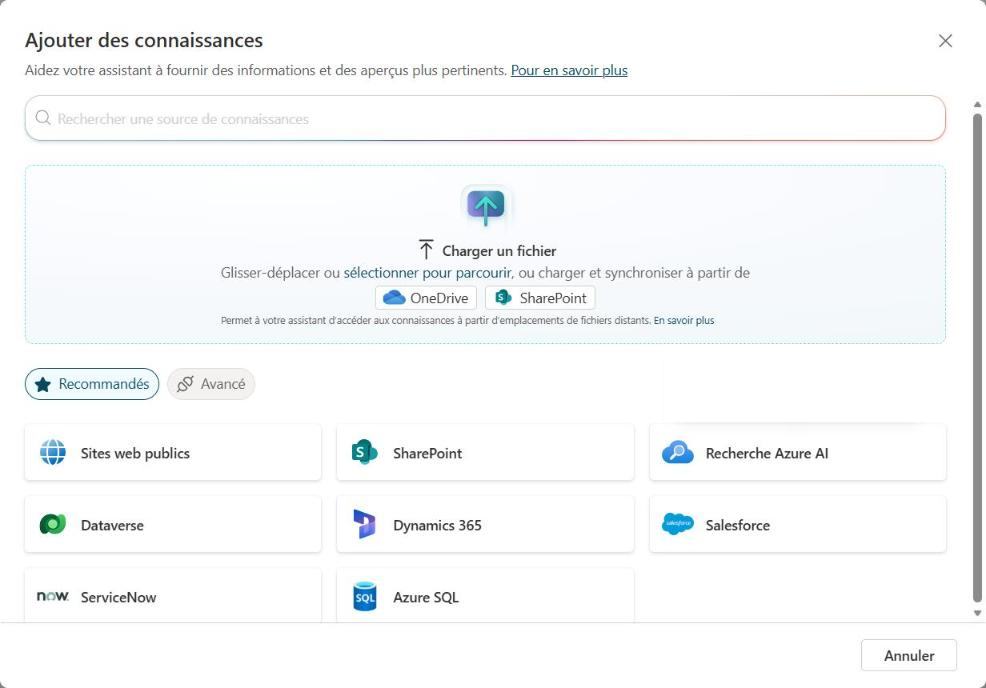
In the map Knowledge, click on Add knowledgeYou can upload a file, sync it from OneDrive or SharePoint, or choose a source: public websites, SharePoint, Dataverse, Dynamics 365, Salesforce, ServiceNow, Azure SQL. Below the list, the "Web Search" option allows or disallows the agent to search the entire public web: leave it disabled for an agent who needs to access only your documents. For the HR assistant, add the HR SharePoint site or the procedures folder. Three rules to know:
- The agent respects access rights. With SharePoint, each user only sees in the responses the documents that they themselves have access to.
- The content is not read in real time. The sources are synchronized every four to six hours: a procedure updated this morning may not appear until this afternoon.
- Fewer sources, better targeted. Copilot Studio accepts up to 500 sources per agent, but an agent who draws from three well-maintained folders responds better than an agent connected to the entire intranet.
Step 6: Add tools, if the agent needs to act
This is what distinguishes Copilot Studio from Agent Builder. In the section ToolsYou can connect a Power Platform connector (Outlook, Teams, SharePoint, ServiceNow, Salesforce, and hundreds of others), a Power Automate flow, or an MCP server. For example, the HR assistant suggests creating a case in the SharePoint list of unresolved issues. For a first agent, skip this step: add tools only after the answers are reliable.
Step 7: Testing
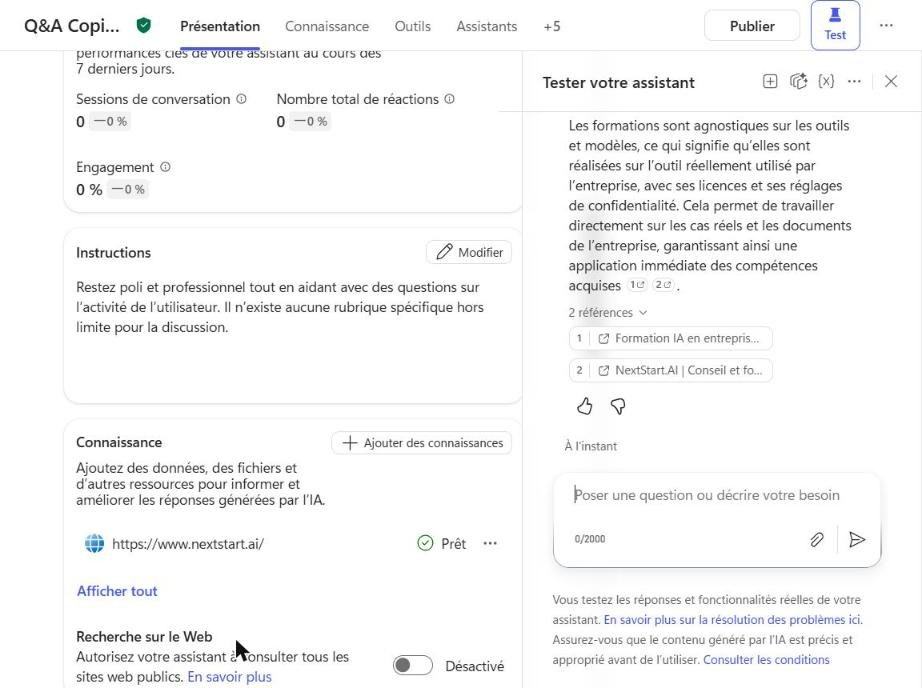
The button Test, top right, opens the flap Test your assistantThis allows you to chat with the agent after each modification. Each answer displays its references: verify that they point to the correct document. Start a new session after each change of instructions. Test at least ten pre-prepared questions:
- five frequently asked questions whose answers you already know;
- two questions formulated awkwardly, as if by an employee in a hurry;
- two questions whose answer is not in the documents, to verify that the agent says it instead of inventing it;
- an off-topic question, to check that he stays within his role.
Correct the instructions rather than adding documents: most wrong answers come from unclear instructions.
Step 8: Publish to Teams and Microsoft 365 Copilot
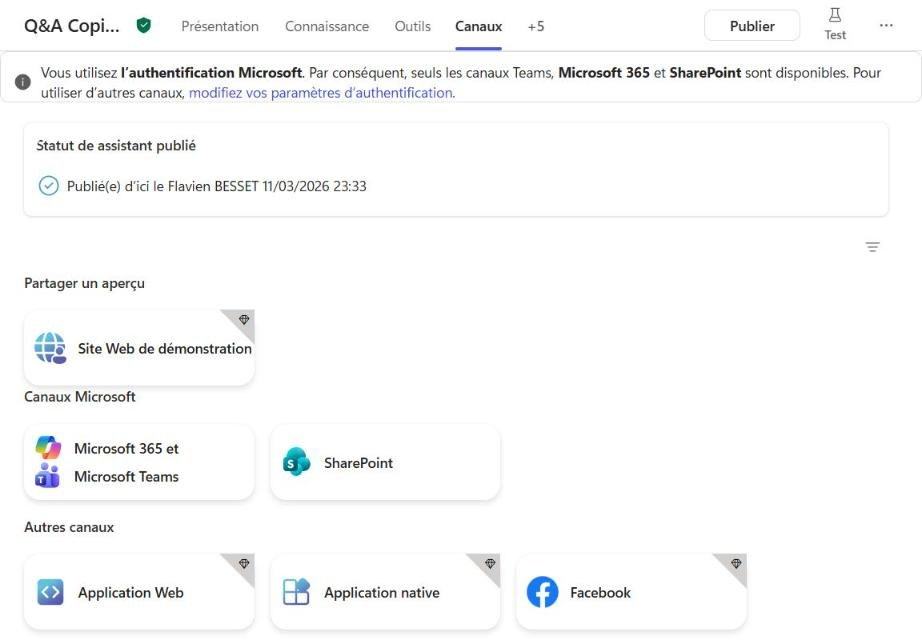
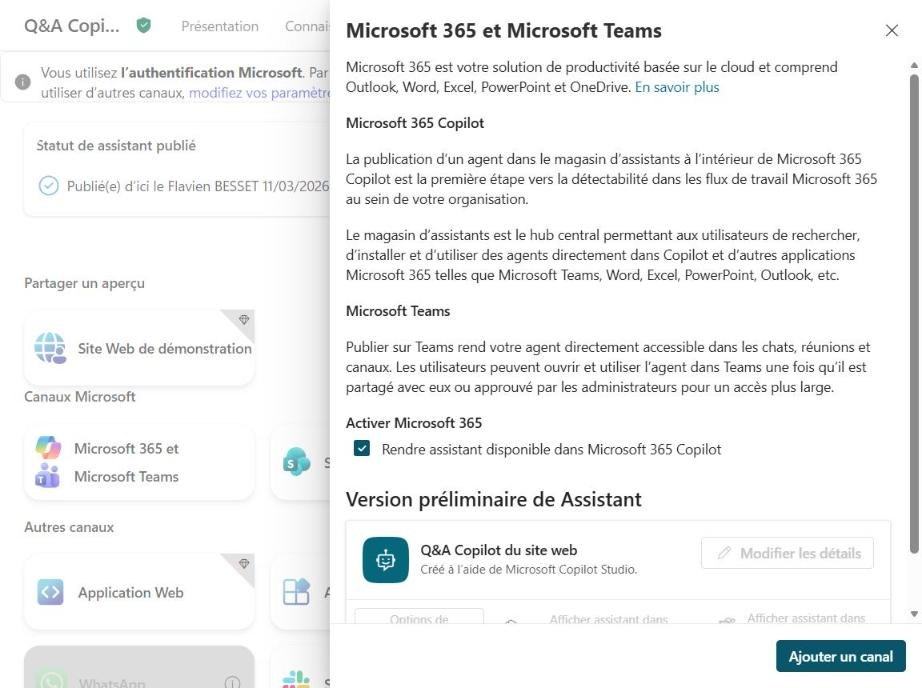
- Click on Publish, then confirm.
- Open the tab Channels (it is sometimes found in the "+5" menu of the tabs), then the tile Microsoft 365 and Microsoft TeamsLeave the "Make assistant available in Microsoft 365 Copilot" option checked and click on Add a channel.
- Click on View the agent in Teams to install it for you first.
- In Availability optionsChoose: copy a link, show the agent to your teammates and the people you shared it with, or show it to the entire organization.
- For the entire organization, click on Submit for administrator approvalOnce approved in the Teams admin center, the agent appears in the "Created by your organization" section of the agent store.
After publication, monitor usage, sessions and credits consumed in the agent's analysis tab, and regularly review unanswered questions: these indicate which documents are missing.
The express version: the same agent in Agent Builder
If your agent does not need to interact with other tools, Agent Builder is sufficient, and it is accessible to any employee who has Copilot Chat.
- In the Microsoft Copilot application (web or Teams), click on New agent.
- Choose To describe to explain the agent in everyday language, Ignore to configure to fill in the fields directly, or start from a template.
- In the tab ConfiguratorEnter the name (30 characters), description (1,000), instructions (8,000), model (Automatic by default), knowledge and startup queries.
- Activate the document, graphics and code creation, or image creation functions as needed.
- Test in the tab Try, then click on Create: the agent is private.
- Share it with the "can edit" or "can discuss" role, or publish it to the organization's agent store if the administrator allows it.
| Knowledge of Agent Builder | Limit per agent |
|---|---|
| Public websites | 4 addresses, a maximum of two path levels |
| SharePoint files | 100 fichiers |
| OneDrive files | 50 fichiers |
| Files integrated into the agent | 20 fichiers |
| teams | 5 conversations and 5 meetings |
On the day the agent needs to act or reach a wider audience, open the agent's "..." menu and choose Copy into Copilot StudioThe name, description, instructions, files, SharePoint sites, and websites are all transferred. Connectors, Teams conversations, and emails need to be reconfigured, and image generation is not transferred. The copy is a snapshot: the original agent remains in place, and modifying it will not affect the copy.
What an agent costs
- With the Microsoft 365 Copilot license (€26,00 excluding VAT per user per month for the enterprise offer), internal use by one agent of the standard harness is included: responses, actions, and searching within the organization's data. Flows initiated by triggers other than the agent itself, agents controlling a computer, and the GitHub Copilot harness remain chargeable.
- Without a licenseAn Agent Builder agent that relies solely on the web is free. As soon as it reads company data, it consumes Copilot Credits: 2 credits for a generative response, 10 for a response based on tenant data, 5 for an agent action.
- The price of credit $0.01 per unit on a pay-as-you-go basis, or a pack of 25,000 credits at $200 per month per tenant, with up to 20% discount for early purchase. An Azure subscription is required.
Details of the licenses are in our comparison. Copilot Chat or Microsoft 365 Copilot and in our article Copilot Pro, Copilot Premium, Microsoft 365 Premium: differences and prices.
The five mistakes that cause a first agent to fail
- Too wide a perimeter. An agent who "answers everything" provides poor answers. One agent per subject, with a specific audience.
- Outdated documents. The agent is accurately quoting an outdated procedure. Clean up your sources before connecting them.
- Negative instructions. Microsoft recommends stating what to do rather than what to avoid, specifying the tone and format, and defining internal acronyms.
- No test game. Without reference questions, it is not known whether a modification improves or degrades the agent.
- No one is responsible. An agent needs an owner who updates the sources, reads unanswered questions, and decides on developments.
These five points are the thread of our Copilot Studio trainingwhere each participant leaves with an agent tested on their own documents. For a broader view of agents, beyond Microsoft, see our guide AI agents in business, and our AI agent training, which also covers Claude, ChatGPT and Gemini.
What has changed recently
- June 2026: arrival of the "New Experience" (GitHub Copilot harness), Skills and Memory.
- July 2026: Each new agent automatically receives a Microsoft Entra identity; MCP workflows and servers become tools, in preview.
- August and September 2026: Usage-based billing in Copilot Credits, Dataverse and Azure SQL tables as knowledge, Word, Excel and PowerPoint attachments in conversations.
- October 2026: applications and hooks in preview, and, from October 26, agents created in Copilot Chat gain in Copilot Studio the topics, ratings and a development, test and production cycle.
The Microsoft Ignite conference, from November 17th to 20th, 2026, will likely bring new announcements. We will update this guide accordingly.
F.A.Q
Is Copilot Studio free?
Agent creation in the standard harness is included with a Microsoft 365 Copilot license. Without a license, a free trial allows you to create and test agents, but not to publish them. Agent Builder, the simplified version, is accessible through Copilot Chat, and a web-only agent is available for free.
Do you need to know how to code to use Copilot Studio?
Not for an agent who responds from documents: everything is done in natural language and via menus. Advanced connectors, complex Power Automate flows, and custom integrations, however, require Power Platform skills.
What is the difference between Agent Builder and Copilot Studio?
Agent Builder creates question-and-answer agents within the Microsoft Copilot application for personal use or small teams. Copilot Studio adds actions in other applications, multi-step processes, publishing to the entire organization or external channels, and more granular administration.
Do my users need a license to use the agent?
No Copilot Studio license is required. However, if the agent reads company data, each use by a person without a Microsoft 365 Copilot license consumes credits billed to the organization.
Can Claude be used in Copilot Studio?
Yes, if the administrator enables Anthropic templates, which are disabled by default in the European Union. They are then processed outside of Microsoft's European data boundary, which warrants a review by your data protection officer.
How long does it take to create a first agent?
An hour is enough for a first version that responds using a few documents. Allow one to two weeks to test it with real users, correct the instructions, and obtain approval for distribution.
Sources
- Microsoft, Microsoft Copilot Studio offers and pricing, accessed October 24, 2026.
- Microsoft Learn, choose between Agent Builder and Copilot StudioUpdated September 30, 2026.
- Microsoft Learn, Getting started with Copilot Studio.
- Microsoft Learn, switching between creative experiences.
- Microsoft Learn, choosing an agent's harnessUpdated September 30, 2026.
- Microsoft Learn, Copilot Studio licenses et Copilot Credits usage.
- Microsoft Learn, sources of knowledge et quotas and limits.
- Microsoft Learn, Publish an agent in Teams and Microsoft 365 CopilotUpdated October 20, 2026.
- Microsoft Learn, Create an agent with Agent Builder, its sources of knowledge et copy to Copilot Studio.
- Microsoft Learn, write instructions for an agent.
- Microsoft Learn, Copilot Studio newsUpdated October 22, 2026.