
Copilot in PowerPoint: the step-by-step guide (creating a presentation from a Word document)
Tutorial published on October 4, 2026, updated on October 24 and November 11, 2026. The screenshots were taken on October 4 in PowerPoint for the web, using a Microsoft 365 Copilot license, from a demo scoping document (fictitious company and figures). The access conditions and license price are from our comparison. Copilot Chat or Microsoft 365 Copilot, compiled from official Microsoft documentation.
Short answer: Copilot in PowerPoint creates a complete presentation from a Word document, then adds slides and writes the speaker's notes, on simple instructions in French. This requires a Microsoft 365 Copilot license, which many call " Copilot Premium ", starting at €18.20 excluding VAT per user per month: since April 15, 2026, PowerPoint no longer offers Copilot to Copilot Chat (Basic) accounts. In our test, a scoping document for 240 employees became a six-slide presentation for an executive committee, with all figures accurate; only the language for verification and the wording of a few headings needed to be changed.
Simply open the Copilot panel, attach the source document, write instructions specifying the audience and the number of slides, and then review each slide.
This guide incorporates the framework note on hybrid work used in our Copilot tutorial in Word 240 employees across three sites, an internal survey, and three numerical scenarios. The goal: to create a presentation for the management committee. Each figure on the slides was compared to the original memo. To implement these practices with an entire team for their own presentations, see our Copilot training in companies.
To practice on your own documents, the free NextStart library offers a prompt to create a presentation from source documents He builds the narrative and the plan slide by slide before Copilot produces the file. The others are gathered in our Examples of AI prompts by profession.
Copilot in PowerPoint in brief: three tested uses
| Usage | Tested instruction | Results in our test | Point of vigilance |
|---|---|---|---|
| Create a presentation from a Word document | Create a 6-slide presentation for the management committee using this document. | Six slides (survey, scenarios, quantified recommendation, timeline, trade-offs), exact figures | Titles need rereading, proofreading language needs correcting |
| Add a slide | Add at the end a "Questions to Anticipate" slide with three questions and a short answer taken from the note | Seventh slide in the same layout, three questions and answers | Verify that each answer comes from the memo. |
| Write the speaker's notes | Write the speaker's notes for this slide for a one-minute presentation. | Copilot first asks which source to use, then writes accurate notes. | Attach the document again in each new conversation |
What you need to use Copilot in PowerPoint
- A Microsoft 365 Copilot license assigned to your professional account. This is what allows Copilot to create and edit slides.
- A presentation saved on OneDrive or SharePointAn empty presentation is all you need to get started: Copilot fills it in.
- A structured source documentThis should also be done in OneDrive or SharePoint: section titles, key figures, recommendations. The clearer the document, the better the presentation.
How to open Copilot in PowerPoint
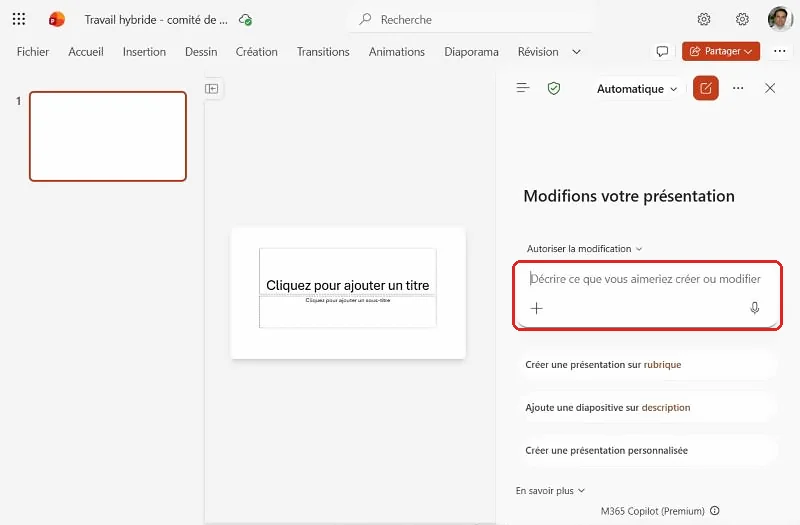
In PowerPoint for the web, the Copilot icon is located in the bottom right corner of the slide. Clicking it opens the "Edit your presentation" pane, with an input area and three starting suggestions: create a presentation on a topic, add a slide, create a custom presentation.
Step 1: Attach the Word document
To make Copilot work from your content, and not from its general knowledge, you need to provide it with the document. The button + The input area opens a menu: "Add work content" allows you to search for a file in OneDrive or SharePoint by its name.
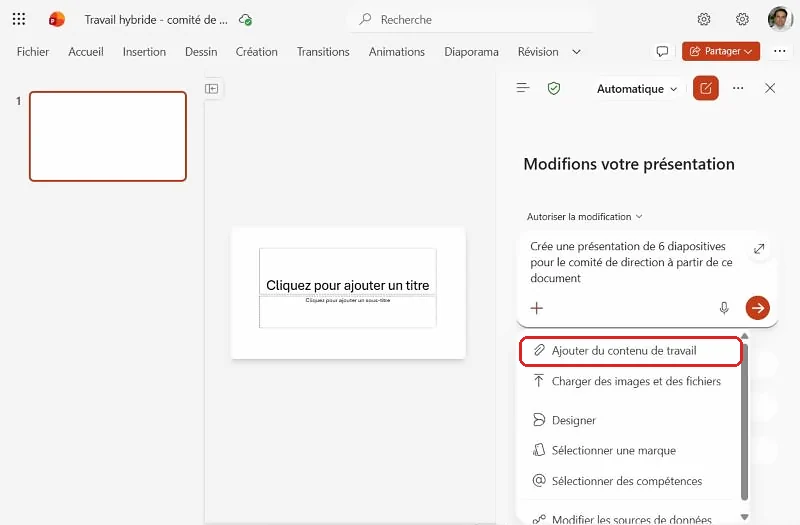
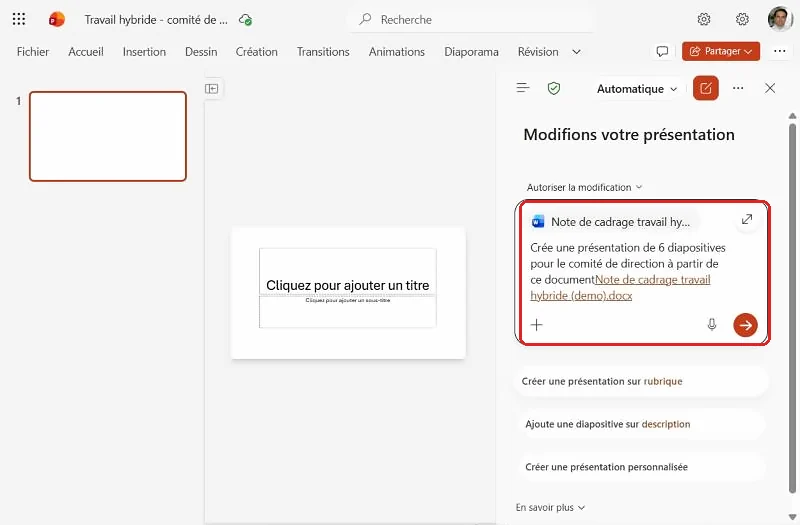
Once the file is selected, it appears as a label above the instruction. You can then write the request:
Create a 6-slide presentation for the management committee using this document.
Step 2: Review the generated presentation
Copilot analyzes the document in several stages. During generation, it may ask a question, for example, about the visual direction (corporate white and blue, ivory and green, navy and orange). In our test, we didn't answer: Copilot automatically chose a simple layout and produced the six requested slides.
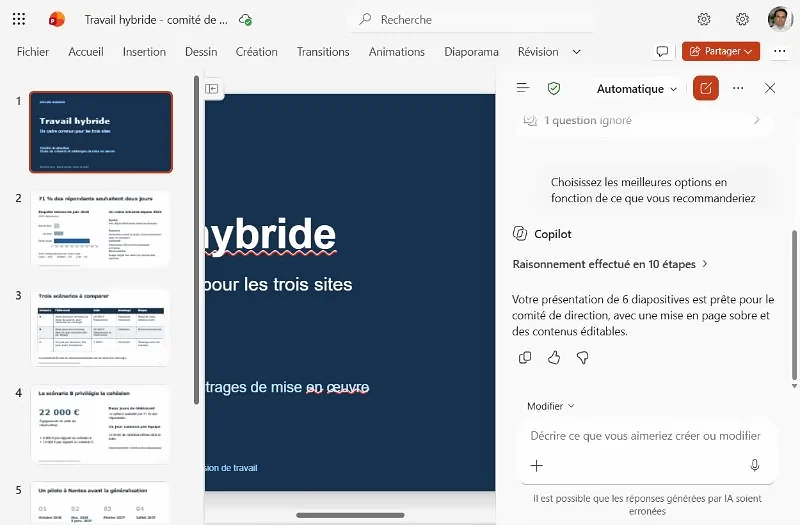
The presentation is consistent with the requirements of an executive committee meeting: a title slide, the survey results (71% of the 198 respondents prefer two days, presented in a bar chart), a table outlining the three scenarios, the cost recommendation (€22,000, which is €4,000 more than scenario A and €13,000 more than scenario C), the timeline (consultation with the Works Council in October 2026, pilot program in Nantes, rollout in February 2027, and final review in July 2027), and the three expected decisions. We compared each figure with the memo: all are accurate.
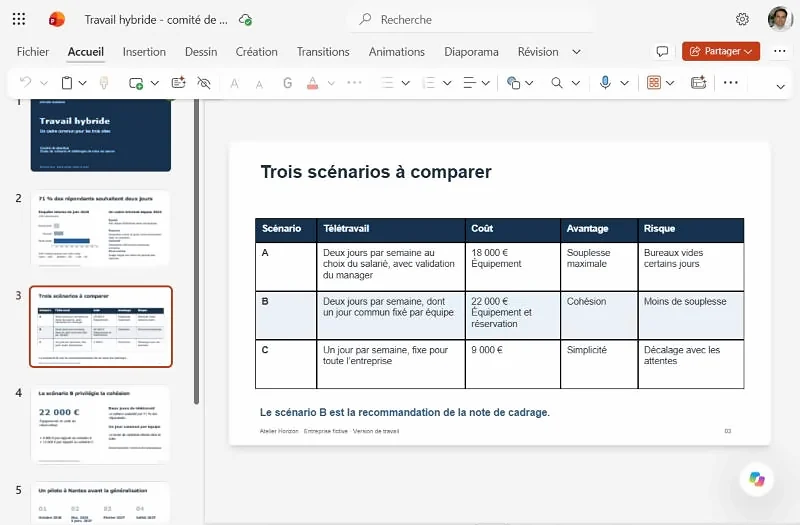
One detail to correct: the generated text was marked in a language other than French, which caused many words to be underlined in red. The Review menu, then the proofreading icon and "Hide proofreading errors" adjusts the display while you proofread.
Step 3: Add a slide
The presentation is then followed by targeted questions. To prepare for the session, Copilot is asked to anticipate the committee's questions:
Add at the end a "Questions to Anticipate" slide with the three questions the management committee is likely to ask and a short answer taken from the memo
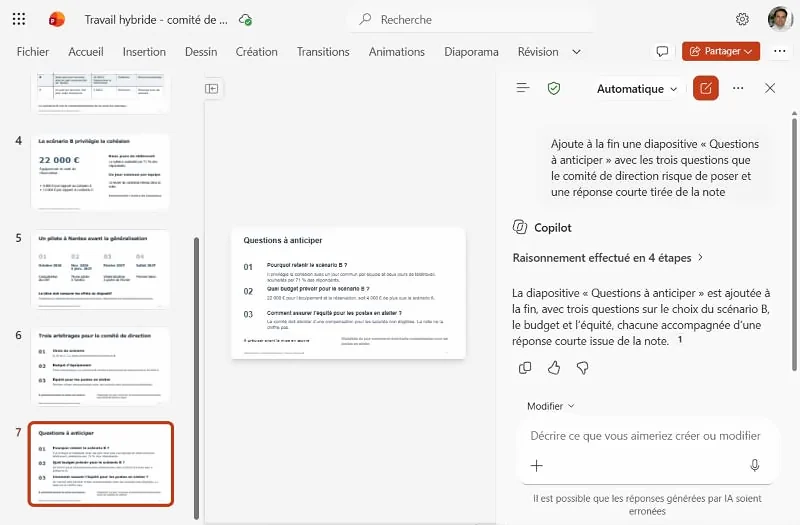
Copilot adds a seventh slide, in the same style as the first six, with three questions: why choose scenario B, what budget should be allocated, and how to ensure fairness for shop floor positions not eligible for teleworking. Each answer refers to an element of the document.
Step 4: Write the speaker's notes
Last use, very useful before an oral presentation. On the recommendation slide, in a new conversation:
Write the speaker's notes for this slide for a one-minute presentation, using only the outline note.
Copilot does not start writing immediately: it indicates that the scoping note is not attached to this new conversation and asks which source to use, the document itself or the elements already included in the presentation.
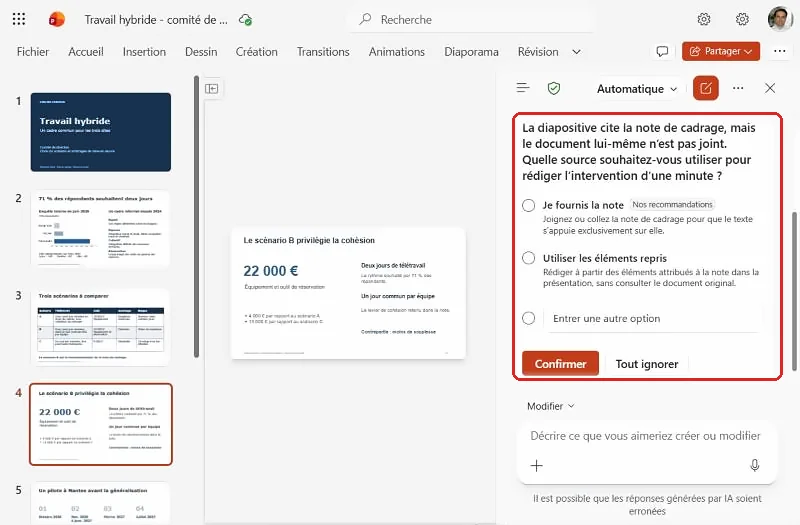
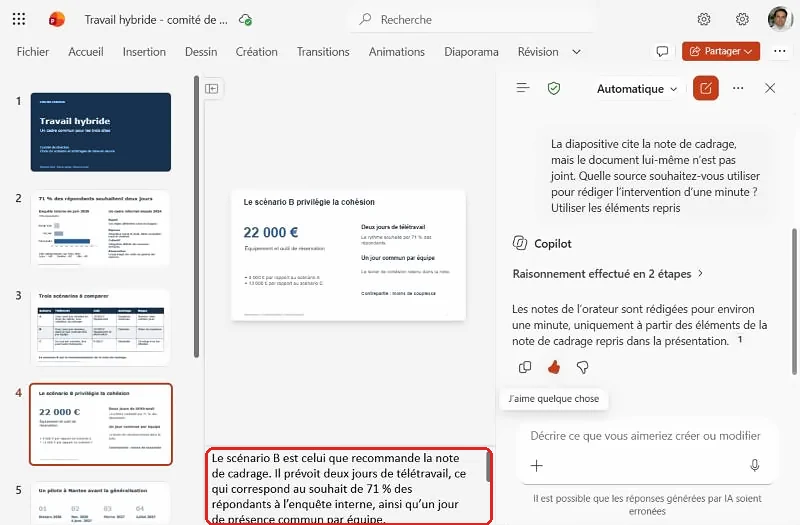
We chose "Use the elements taken from the slide". The notes appear below the slide, in the Notes area: they remind us that scenario B is the one recommended by the note, that it meets the wishes of 71% of respondents and that it provides for a common attendance day per team.
10 Copilot prompts for PowerPoint to copy
Attach the source document using the + button and always specify the audience, duration or number of slides.
- Create an 8-slide presentation for the management committee from this document.
- Summarize this presentation in 5 key points.
- Add a slide that compares the options in a table.
- Add a summary slide with the three expected decisions.
- Rewrite the slide titles as messages, one sentence per title.
- Shorten the text on this slide to a maximum of three bullet points.
- Write the speaker notes for each slide for a 10-minute oral presentation.
- Add a slide titled "Questions to anticipate" with a short answer for each question.
- Provide an image to illustrate this slide.
- Check that the figures in the presentation match those in the attached document, without changing anything.
Limitations and pitfalls to be aware of
- Check each figure. In our test, all the statements were correct, but the headlines rephrase: "Scenario B prioritizes cohesion" is an interpretation of the memo, not a direct quote. Reread the headlines as messages you stand by.
- Attach the document to each conversation. A new conversation does not retain the previously attached file. Copilot warns you about this, but it's best to join it immediately.
- Control the layout and language. Without a company template, Copilot applies its own style. Check the style guide and the language verification tool to see if any correct words appear underlined.
- Answering Copilot's questions. When it offers choices (style, source), a quick response gives a result closer to what you expect than letting it decide.
- Consider confidentiality. Copilot respects your Microsoft 365 access rights, but a presentation often circulates more widely than the source document: remove the information that should not be released.
Frequently Asked Questions about Copilot in PowerPoint
Can Copilot create a PowerPoint presentation from a Word document?
Yes. In the Copilot pane of PowerPoint, attach the document using the + button (Add Working Content) and request a presentation, specifying the number of slides and the audience. Copilot will use the document's structure and figures; review each slide before presenting.
How do I activate Copilot in PowerPoint?
There's nothing to install: Copilot appears in PowerPoint as soon as the Microsoft 365 Copilot license is assigned to your work account. Open a presentation saved on OneDrive or SharePoint, then click the Copilot icon in the bottom right corner of the slide to open the pane. If the icon doesn't appear, see the last question on this page.
Do I need a license to use Copilot in PowerPoint?
Yes. Since April 15, 2026, PowerPoint no longer offers Copilot for Copilot Chat (Basic) accounts: a Microsoft 365 Copilot license, often referred to as "Copilot Premium," is required, starting at €18.20 excluding VAT per user per month. Your IT department can confirm the offer assigned to your account.
Does Copilot respect my company's graphic charter?
It can use a template or brand if your organization has configured one (Select a brand option in the + menu). Otherwise, it offers its own layout: check colors, logos, and fonts before publishing.
Can Copilot write the speaker's notes?
Yes, slide by slide or for the entire presentation. Indicate the duration of the oral presentation and the source to be used, then reread the notes: they must remain faithful to the original document.
Why don't I have the Copilot button in PowerPoint?
First, look for the Copilot icon in the bottom right corner of the window: Microsoft has grouped access to Copilot there, and you can then pin it next to the ribbon. If it's not there, open File, then Account: verify that you are signed in with the work account that has the Microsoft 365 Copilot license ("Copilot Premium"), click Update license, and restart the applications. Then install the latest updates: the Enterprise six-month channel does not include Copilot, and your IT department can upgrade your computer to the current or monthly channel. Finally, connected experiences must be enabled in the account's privacy settings. In the meantime, PowerPoint for the web remains a backup solution.
Explore more!
- Copilot Studio: Create your first agent step by step
- Copilot in Outlook: the step-by-step guide
- Copilot in Teams: the step-by-step guide
- Copilot in SharePoint: the step-by-step guide
- Copilot in Word: the step-by-step guide
- Copilot in Excel: the step-by-step guide
- Which AI model should be chosen for which task?
- From prompt to context: context engineering